Any change triggered by another device — a wall switch, a scene, a scheduler — is read back from the KNX bus and reflected on the Atlas Knob's display ring in real time. The physical state of the installation is always visible on the device.

The Nexé KNX Atlas Knob is a versatile rotary input device for KNX bus installations. Each press cycles through fully configurable functions — dimming, shade control, scene activation, and more — with real-time state feedback over the KNX bus.
Unlike traditional push buttons that require ETS programming changes for every function update, the Atlas Knob exposes its entire UI and KNX configuration through a clean browser interface.
Installers can remap group addresses, reorder functions, and update behaviour on-site without opening ETS.
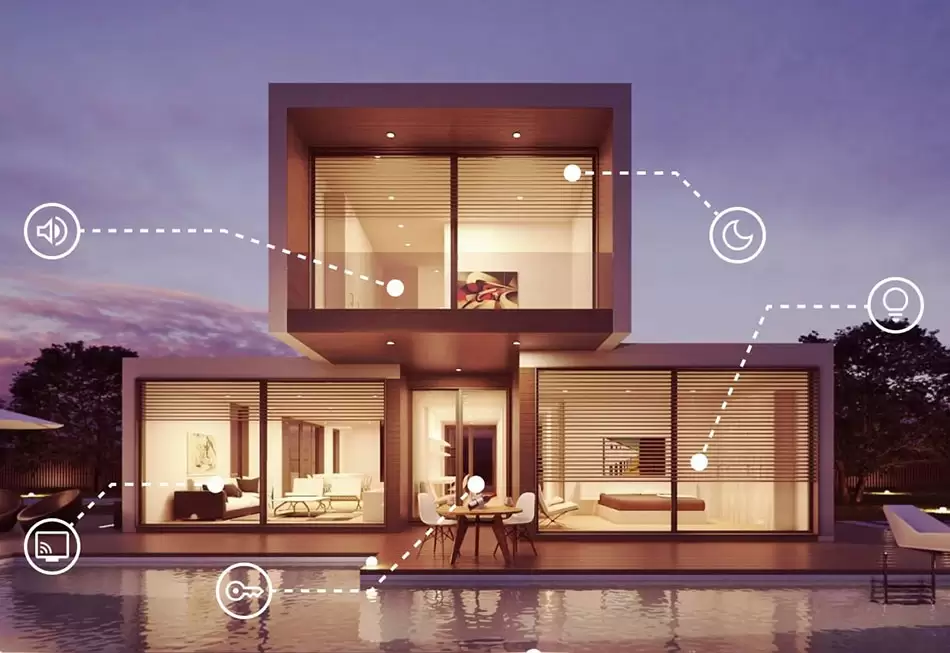
A precision rotary controller for KNX installations
Configure behaviour, functions and the full KNX group address map directly from your browser
Physical feedback meets intelligent control
No specialist tools. No ETS rework. Reconfigured at the site.
Any device with a browser on the same network can configure the knob
Communicates directly on the KNX TP bus
A rotation adjusts the current active function's value — dimming level, shade position, or setpoint. A short press cycles to the next configured function. The knob sends the correctly typed KNX telegram to the mapped group address instantly.
Any change triggered by another device — a wall switch, a scene, a scheduler — is read back from the KNX bus and reflected on the Atlas Knob's display ring in real time. The physical state of the installation is always visible on the device.
Unlike any other KNX panel on the market, the Atlas Knob ships with zero pre-assigned functions. Every slot is configured at the site — assign Dimmer, Shades, or HVAC in any combination through a browser interface served by the device itself. Change a room's function in minutes without touching ETS, ordering new hardware, or calling a specialist.
Sends commands and receives state updates simultaneously on the KNX bus. The knob always reflects what is actually happening in the installation — not just what was last requested.
Each short press cycles the active function — dimmer, shades, HVAC setpoint, scene, or any custom KNX datapoint. Functions are user-ordered and fully relabelled through the browser UI.
The complete UI layout and KNX group address mapping is configured through a built-in web interface. No proprietary software. No ETS plugin. Any device with a browser on the same network can configure the knob.
Only the bus connection and group addresses need to be defined in ETS. All function logic, UI behaviour, and display configuration is handled by the knob itself. ETS changes are needed only when adding entirely new group addresses.
Communicates directly on the KNX TP bus. No IP gateway required for the device itself. Works with any compliant KNX installation and any ETS project.
Firmware is updated over the air through the same browser interface. New datapoint types, display modes, and features are delivered without site visits or hardware changes.

Configured at the site. Not the factory.
The Atlas Knob is different. Every function slot is configurable directly on-site using the Atlas Configurator — a built-in browser interface served by the knob itself. Open it on any phone or laptop on the same network. No app, no software, no ETS revisit.
With traditional KNX panels, any change in function assignment means ordering different hardware, revisiting ETS, and sending a specialist back to site.
Command Every Zone. From a Single Panel.
A single Atlas Knob model handles Dimmer, Shades, and HVAC in any combination. No need to pre-order function-specific panels per room. One device type fits every installation scenario.
Repurpose a room without rewiring. Convert a guest room's dimmer to HVAC control. Add shade management to a study. The installation evolves with the occupant — not with the original floor plan.
When a client changes their mind about a room's function — as they always do — the Atlas Knob adapts in minutes on site. No return visit, no ETS session, no replacement hardware required.
Function changes are handled through the Atlas Configurator — a plain browser page accessible from any phone on the home network. A trained user can reconfigure without scheduling specialist time.
Each press cycles the knob to the next function. Rotate to adjust. Configure order and group addresses in the browser.
Rotate to set brightness level. Supports 1-bit on/off and 4-bit relative dimming.
Control blind position as a percentage. Up / down slat angle supported.
Control blind position as a percentage. Up / down slat angle supported.
Activate named KNX scenes by index. Mapped to group addresses via browser UI.
| Bus Interface | KNX TP (Twisted Pair) |
| Communication | Two-way · Command & State Sync |
| Functions per Device | Up to 3 (user-configurable) |
| Supported DPTs | 1.001 · 3.007 · 5.001 · 9.001 · 18.001 |
| Configuration | Browser-based UI · Same-network access |
| ETS Integration | Minimal — Group address assignment only |
| Firmware Updates | OTA via browser |
| Compatibility | All compliant KNX TP installations |
From completed villas to multi-unit developments — the bridge that connects every KNX installation to every ecosystem.